skip to main |
skip to sidebar
Sunday, June 26, 2011
You must already be familiar with the word processor Microsoft Word. Most people use these applications to help make a variety of jobs, such as data administration office / school, make invitations, and others.
This time I will not discuss the usefulness-usefulness as above, but will only give simple tips and tricks, namely how to change text menus in Microsoft Word

The trick is as follows:
1. Open the Microsoft Word application.
2. Click the menu View | Toolbars | Customize
3. Leave the Customize menu box remains open
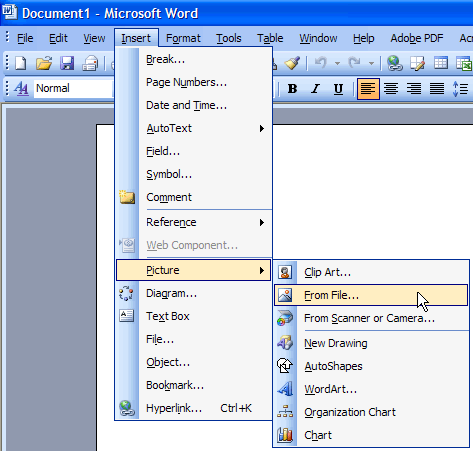
4. Next, try to replace one of the menu, such as the Insert menu, you need to change its name to "inline". The trick is to click the mouse right next to the menu you wish to change (customize menu box was still open). In the name, replace the Insert last word with the word "inline". (See picture)
5. Maybe you want to change the text sub-sub menu in the menu on the main menu Insert earlier, the same way with the step above was then followed by left-clicking the sub menu you want change in the insert menu namanya.Contoh you want to replace the sub menu Picture Picture with words. Here's how, see the picture below.
6.finish
So first tips and tricks this time. Hopefully helpful
This post will tell you about how to change the display name of the processor. The reason I make this post just for fun aja ya. Who knew there was a minder who still have older computers (like me).

This article is intended for people who are also fun, let a little bit PD. But do not be misused, such as selling computers assembled, its P III processor, the looks on fox so P IV or even Core 2 Duo / Core 2 Quad. For people who lay anyway (who do not know jeroannya, only to see the display in the GUI, can ketipu). So, I call this article an article for fun:) Oh yes, I addressed this article as well for people who do not know this trick, sorry for those who are good at tinkering with the registry.
Well, we now show:
1. As usual, before tinkering with the registry, backup first, to avoid things that are not desirable.
2. Go to Start Run Regedit
3. Find: HKEY_LOCAL_MACHINE System Hardware description CentralProcessor 0ProcessorNameString
4. Try to change the paper type in the existing processor ProcessorNameString writing with the name of the processor you want.
Description: Changes the name of this processor will not change your computer's performance. This paper is merely a "look" just let me look cool.
Everyone would want to get faster Internet connection than usual. Well this time I will try to give one of the tips to increase the speed of your Internet connection by adding bandwidth in Windows.
At default settings, the Windows operating system is limiting the bandwidth for internet connections by 20% of the total bandwidth should be maximized.
The trick to trick to the internet connection on windows can be maximized is as follows:
1. Click Start | Run
2. Type gpedit.msc | OK
3. Once entered click Administrative Templates | Click Network
4. When it opens click QoS Packet Scheduler
5. Then click on Limit Reservable Bandwidth
6. When it opens, change the setting to Enable
7. Change Bandwidth limit to 0
8. Click Apply | Ok
9. restart the computer
It could be that the results are different for each computer, one of which could be caused by the computer's specifications or type of connection used (this is just my guess only, because I did not try all kinds of connections).
May be useful.
Typically, each application, whether it's a stand-alone or web-based, there's always tricks are relatively attractive to put into practice. Well, this time I will try to write about 10 tricks that exist in the G-Chrome. Is the 10 that trick?10 Tricks G-Chrome:

1. If you want to accelerate the opening of a site, you can save the site url you want into the shortcut. How: Open the site you want to create its shortcut, select the Page Control menu in the upper right corner (looks like paper folding). Choose: make track application. Next, you select a place (tick) to save a link to your favorite url earlier. This method applies also to other Google apps like Calendar and Docs or other services such as Windows Live Hotmail.2. If you do not want others to know your footprint on the web / site whatever you open, you can open gmail with or incognito incognito mode. Quick way to open it: press Ctrl + Shift + N, then you will be able to freely browse without worrying people know your impressions. Sites that once you open will not be saved in the history and cookies and automatically deleted when the browser window in the lid.
3. Alternatively: You can open a link in an incognito window by right clicking and selecting a link Open link in incognito window.
4. Alt + Home used to display the main page (Home) Google Chrome, with thumbnails of sites you visit most often displayed in the tab window is active.
5. If you want to open a new tab, use Ctrl + T. You can change the position of the tab to your liking (sort) or drag a tab out of the window to display a separate window.
6. Ctrl + Shift + T is used to open the last closed tab. Press the key combination again to open the last closed tab. Google Chrome can remember the last 10 tabs that have closed.
7. You can instantly "jump" to a different tab is open by using Ctrl +1, Ctrl +2, Ctrl +3, etc.. While the Ctrl +9 will take you to the last tab.
8. As with any version of Firefox 3, you can drag a link into the tab to open it in tabs, or put it between two tabs to open a new tab in that position.
9. If you want to bookmark a site, click the star icon at the left of the address bar, then select the folder to add it.
10. Ctrl + B is used to hide the Google Chrome bookmarks bar. Press Ctrl + B to return to its original position.
Well that's all 10 tricks on the G-Chrome. If later I find another trick, I'll try to post them on other occasions.
May be useful.
Today, by accident, I discovered a new feature in Gmail. Its function is to "sort out" the incoming emails.

The name of the new features it is Priority Inbox. Now this is still beta stage. But it is also useful for us who have hundreds or even thousands of emails. How it works, similar to the way giving star (starred) for every email that is considered important
So, once there is mail comes in, we just check the little box at the edge of a subject, then we enter into the priority category (plus sign / +). Then, later if there are emails in the same category, will automatically classify themselves into each category.
If this feature is enabled, then in your inbox will be divided into 3 parts:
Important groups and Unread ---> emails that are considered the most important / urgent
Group starred (emails that have been given a star)
Group Everythng else.
Although our intervention is still required (the manual-one at a time) when the process of sorting mail, but bad. Inbox we can be more comfortable to be seen (at least for me).
Perhaps among the many computer users, they ask, where is the best antivirus?

The answer can vary, there is mention superior product A, product B is superior, there is also mention other products.
Of the many answers to earlier, can also most of the answers raised by the subjectivity of users or the fanaticism of certain products. (I personally tend to prefer local antivirus products. The reason I am relating below).
However, as a material consideration, there are at least two grounds may be used to decide which one antivirus installed on your computer.
1. The best Antivirus is an antivirus that is always "updated" periodically / regularly, so it will provide better protection than antivirus - which, although well known, but infrequently updated regularly.
2. Use an antivirus that has a concern for local users as well as providing local support to its products. The reason is, because in addition to virus threats from abroad (which usually can be detected well by most antivirus), there are also threats coming from the local virus that can not be detected by antivirus software made overseas.
Well, after reading the brief tips above, you can now decide, antivirus which you will use. Anybody want to add?


 Posts

